
How to Login to Pylon
Logging Into Your Account
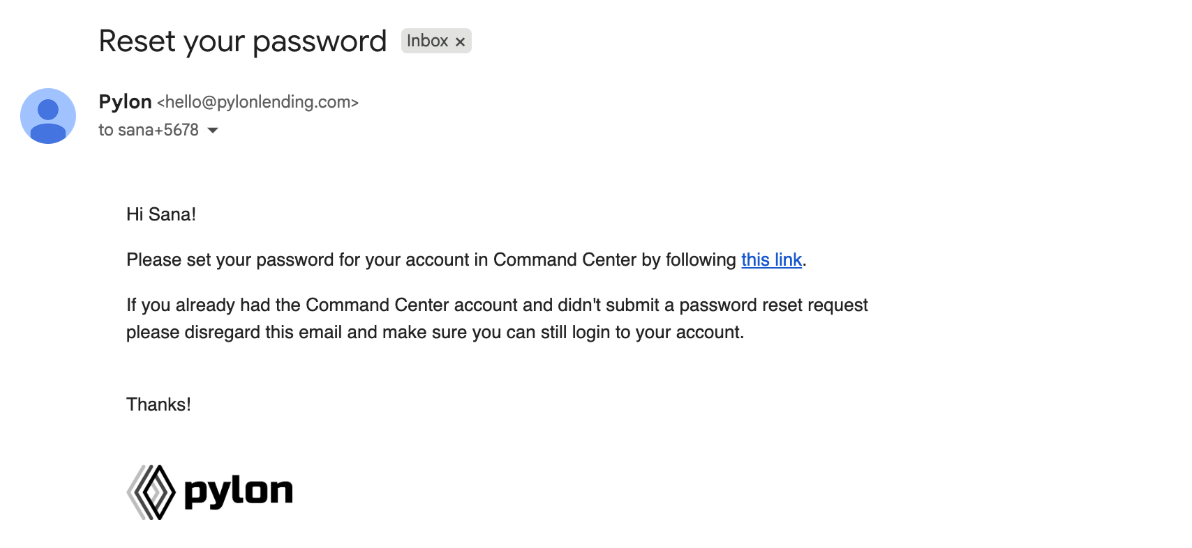
Step 1: Check Your Email
You will receive an email invitation with a link to access Pylon.
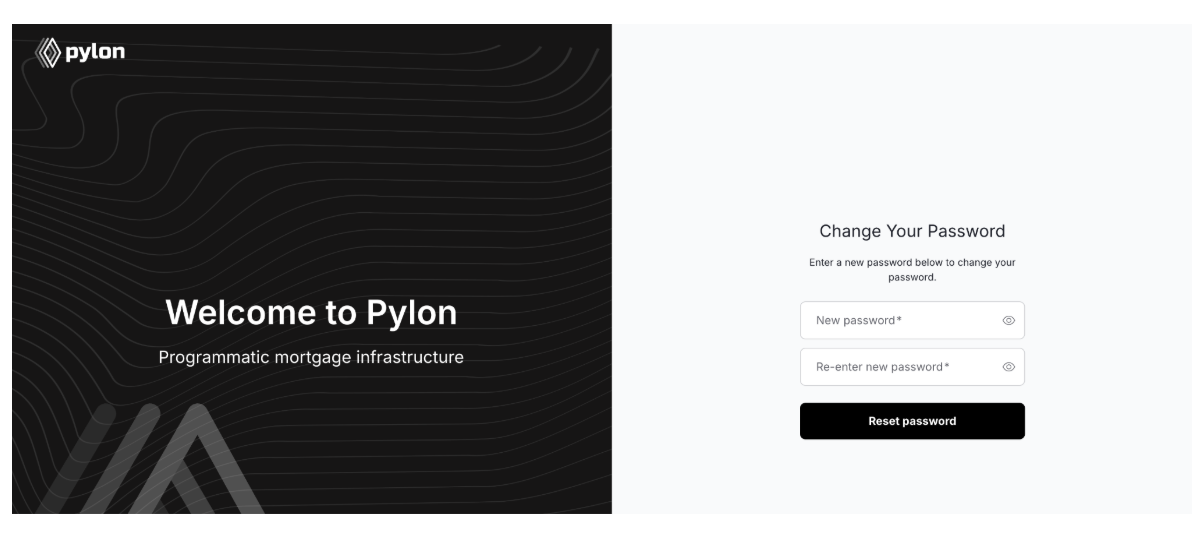
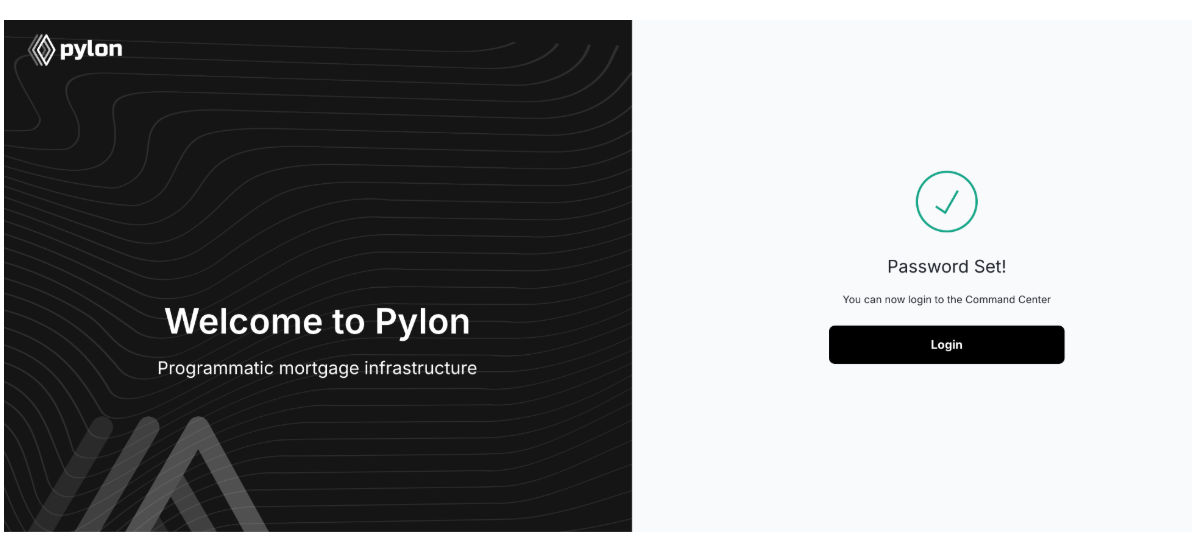
Step 2: Create Your Password
Click the link in the email. You’ll be directed to pylon.mortgage to set up your password.
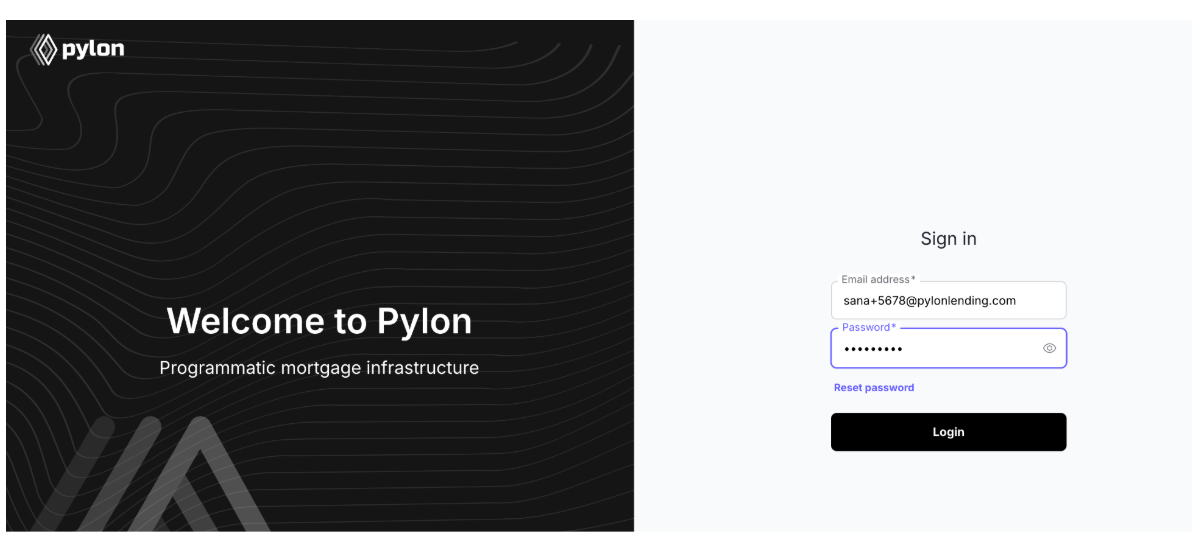
Step 3: Sign In
After your password is set, sign in using your new password.
Step 4: Secure Your Account
After you sign in, you’ll be prompted to scan a QR code for two-factor authentication.
If you do not already have an authenticator app installed on your phone, you’ll be prompted to download one. Common options include:
Microsoft Authenticator
Google Authenticator
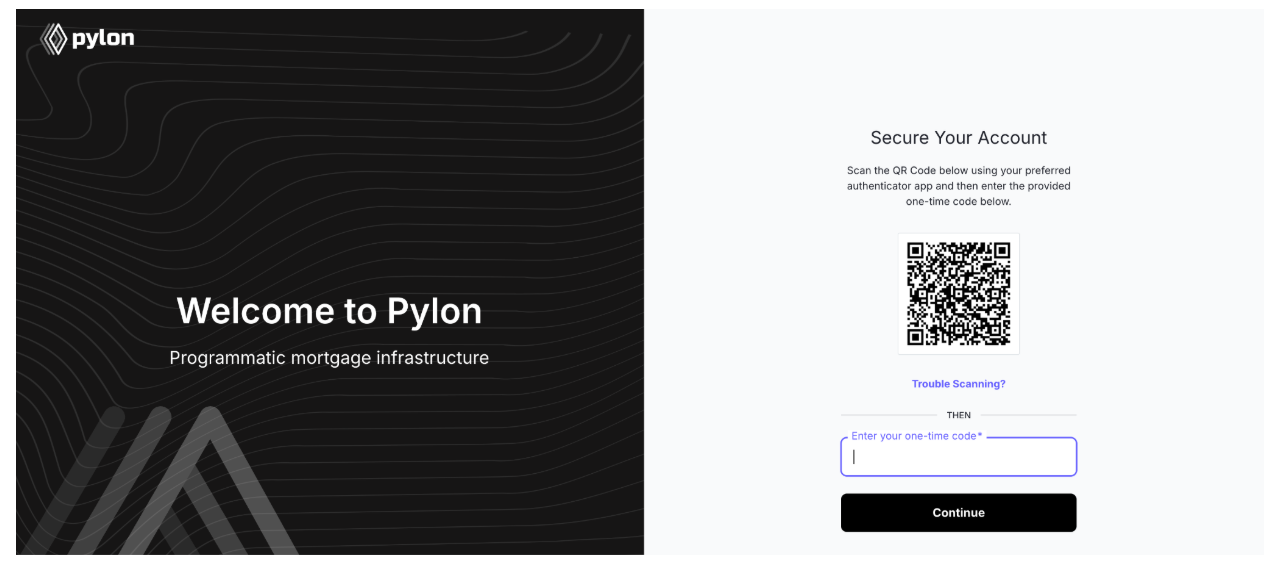
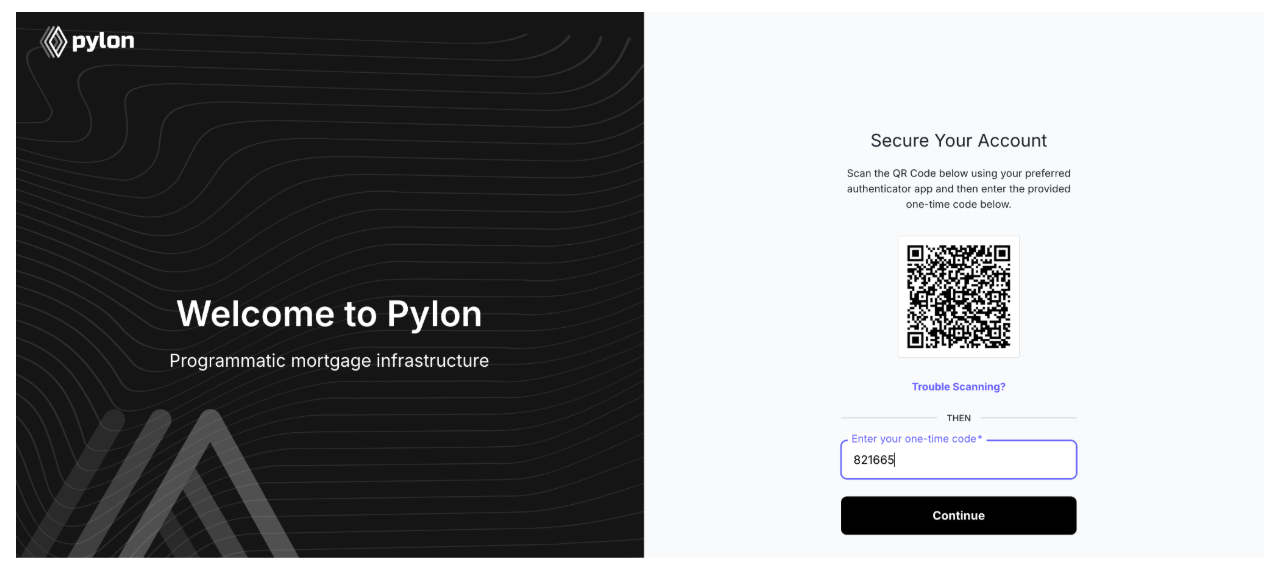
Step 5: Enter Your Verification Code
Open your authenticator app and enter the 6-digit verification code generated for your Pylon account.
Step 6: You’re In!
You’ve successfully logged into Pylon.
⭐ Pro Tip: Bookmark pylon.mortgage for quick access in the future.
Troubleshooting Tips
If you’re having trouble logging in, try the following:
Authentication:
Use the one-time verification code from your authenticator app (this code will not be sent via email)
Verify you’re using the correct authenticator code, especially if you have multiple authenticator accounts or environments configured
Ensure the code is entered before it expires and refreshes
Reset Password:
Go to pylon.mortgage
Select “Reset Password”
Follow Steps 1–6 outlined above to complete setup
Other things to try:
If you receive a “Something went wrong” error, refresh your browser and try again
Try using an Incognito/Private Browsing window
Make sure your email address is entered in all lowercase
If you still cannot access your account after trying the steps above, please contact the Pylon team for assistance.